# Template Orders
# Adding License To HSVE Client Portal
This article outlines how to add your newly obtained license to the HSVE Client Portal.
Carry out the following steps if:
- License doesn't appear automatically
- Your license has been extended
- License has been removed by admin to be assigned with your new email address.
#### **Step 1: Locating Order Email**
When you signed up to our HSVE Templates Script either for 6 months or 1 year you would've recieved an email from our support email address with the following content.
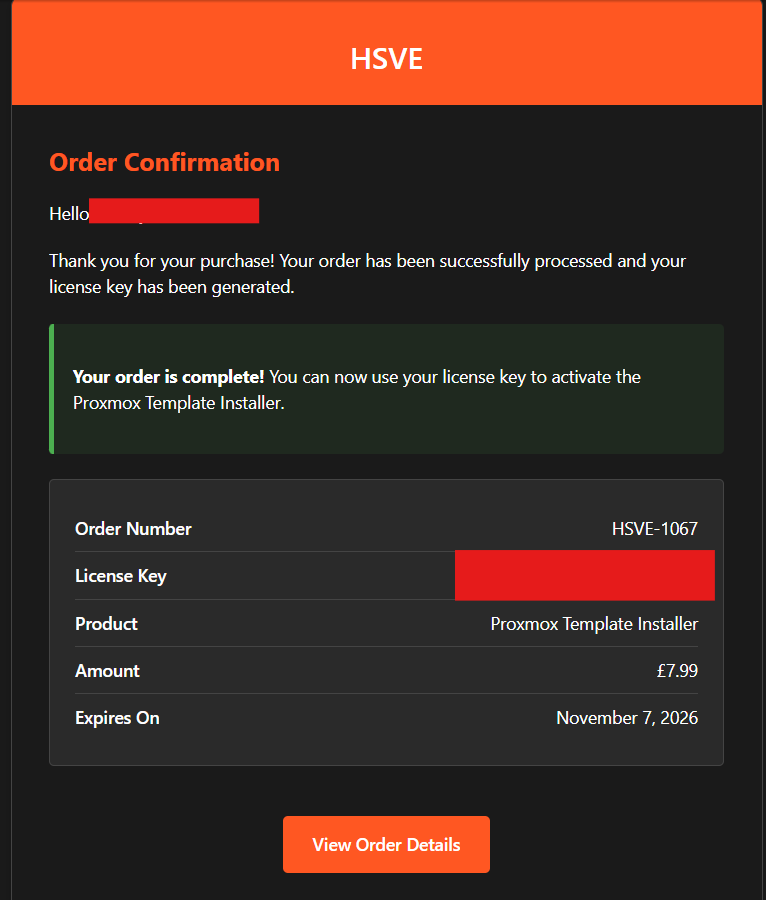
You should see your license key on the right hand side (Covered in this case)
#### **Step 2: Logging in to HSVE Client Portal**
To access the client portal, please go to [https://hsve.cc/login](https://hsve.cc/login)
At this stage you may not have an account yet, if that is the case please register [https://hsve.cc/register](https://hsve.cc/register)
Once registered you should see a screen like so:
[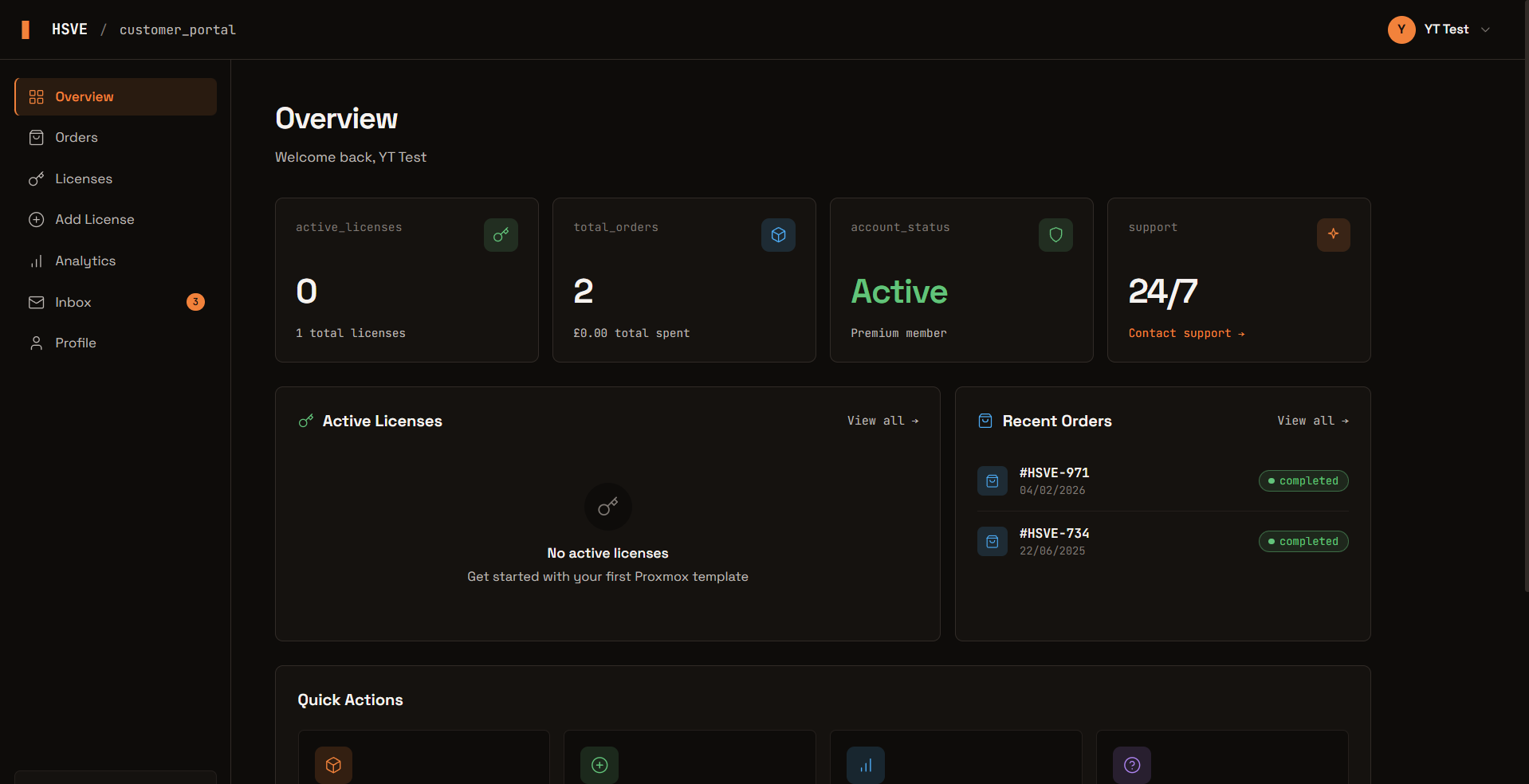](https://docs.hsve.cc/uploads/images/gallery/2026-06/image.png)
That's great! you are now logged in to the HSVE Client Portal.
#### **Step 3: Adding License to Client Portal**
1. Select licenses from the left sidebar
2. Select 'Add License'
3. Paste License Key specified in order confirmation email
4. Select 'Add License'
You should receive a confirmation notification once the license has been added and you will be able to see it throughout the client portal.
This will also pull through your installation command so you can easily copy and paste the installation command, followed by the license key when you're asked for it.
If you have any issues along the way and require any help please raise a ticket by emailing us at
Kind regards,
HSVE Team
# HSVE Templates Script - Terms and Conditions
When checking out on our HSVE Website
Your information will be used for statistics, and if you optionally submit a review, your display name and rating will be publicly viewable.
By buying a product from the https://hsve.cc website you consent us to communicate with our 3rd party Stripe for payment authorisation & validation.
If the product you are purchasing is our Proxmox Templates Script — Laptops are not supported in any way, as well as Mini PCs due to them usually using mobile CPUs and most importantly iGPUs which are not supported at all by macOS and have limited support in our other OSs. No Refunds will be accepted if you buy this script and fail to use it on the stated devices. This also includes that refunds will not be issued for incompatible setups. The Proxmox Templates script is essentially non-refundable.
If you decide to use a Credit payment method such as Klarna, Credit Card or others, you are legally bound by the 3rd party to pay. If the credit provider alerts us to mis-payments, your access may be revoked with no refund.
When you purchase the script depending on the expiration date, 6mo, 12mo — the start date is as soon as payment has been taken from your account and cannot be extended. If you wish to use the script once again, you will need to repurchase it from the https://hsve.cc website.
Standard basic order support is included with your order, however if you require any additional help or a custom setup, we offer consultation services for this (Additional Fees Required).
Thank you for your consideration before accepting the conditions stated.