
Adding License To HSVE Client Portal
This article outlines how to add your newly obtained license to the HSVE Client Portal.
Carry out the following steps if:
- License doesn't appear automatically
- Your license has been extended
- License has been removed by admin to be assigned with your new email address.
Step 1: Locating Order Email
When you signed up to our HSVE Templates Script either for 6 months or 1 year you would've recieved an email from our support email address with the following content.
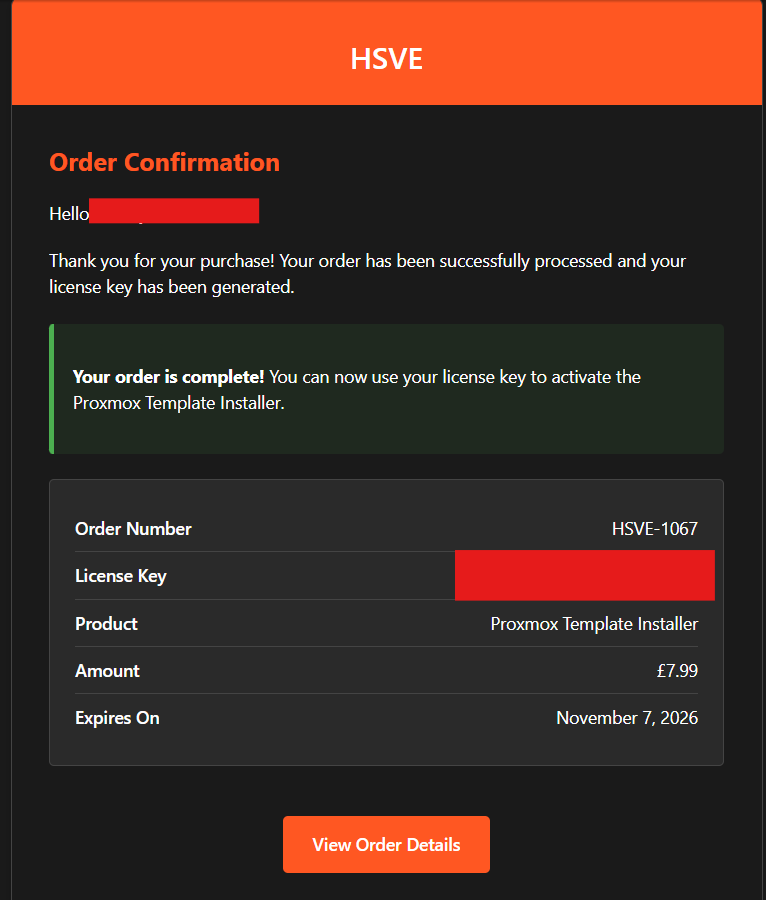
You should see your license key on the right hand side (Covered in this case)
Step 2: Logging in to HSVE Client Portal
To access the client portal, please go to https://hsve.cc/login
At this stage you may not have an account yet, if that is the case please register https://hsve.cc/register
Once registered you should see a screen like so:
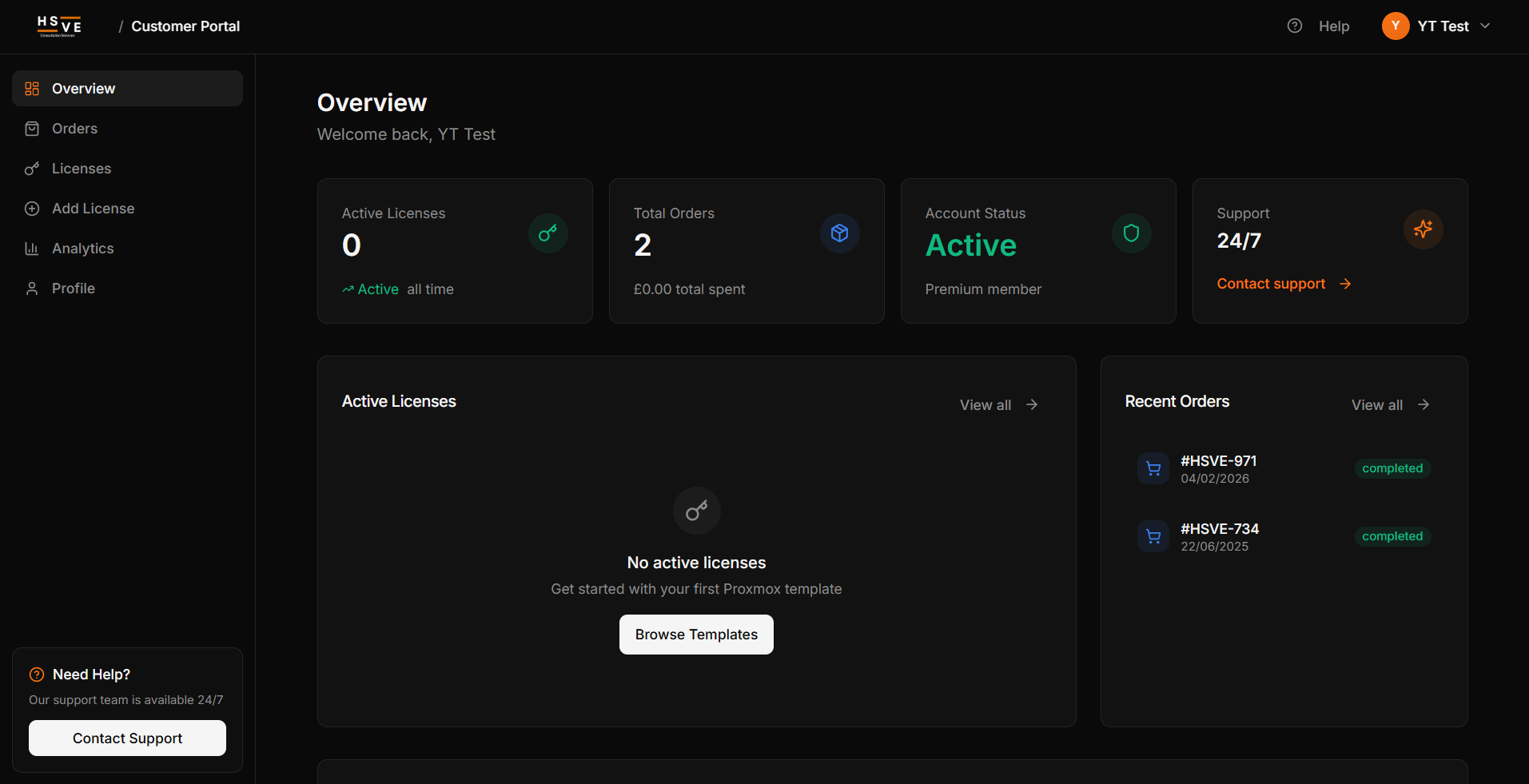
That's great! you are now logged in to the HSVE Client Portal.
Step 3: Adding License to Client Portal
- Select licenses from the left sidebar
- Select 'Add License'
- Paste License Key specified in order confirmation email
- Select 'Add License'
You should receive a confirmation notification once the license has been added and you will be able to see it throughout the client portal.
This will also pull through your installation command so you can easily copy and paste the installation command, followed by the license key when you're asked for it.
If you have any issues along the way and require any help please raise a ticket by emailing us at [email protected]
Kind regards,
HSVE Team